The Bitly GPT is Now a ChatGPT Plugin: Create Links and See What’s Working in One Place


Odds are, your last campaign started in ChatGPT. It’s where you shape the hook, draft the posts, and map out the launch all in one productive conversation.
But then it was time to create the campaign links for each channel, and at each stage of the funnel. So you leave the chat to build UTM links, paste them back, then return weeks later to pull the numbers, losing context at every step.
So when your boss asks what worked, you’re piecing together insights instead of giving a straight answer.
What if the plan, the links, and the results all lived in one conversation? Now they can, with the Bitly plugin for ChatGPT.
Here’s what’s changing. OpenAI is moving custom GPTs to plugins, with custom GPTs scheduled to retire in December 2026—and Bitly is moving with it. It’s super easy and it only takes a matter of minutes (seconds, really) to install the Bitly plugin and connect your account to reap the benefits of connecting your marketing strategy.
Prefer Claude, Copilot, or Perplexity? Bitly works there, too. Learn more about Bitly’s LLM integrations.
Read on to learn what the plugin does, how to set it up, and how to get the most out of it.
The Bitly plugin for ChatGPT brings link and QR Code creation, and performance analytics all into a ChatGPT conversation where you are already working. ChatGPT connects to your Bitly account, so every link and QR Code can have all the customizations you would get in Bitly, like your custom domain and link data, but now you ask for it in chat.
The plugin works in both ChatGPT and ChatGPT Work, bringing Bitly into the tools people are already using to get things done. OpenAI recognizes the same shift we do: AI is becoming a place where people take action, alongside finding answers.
“Marketers already plan their campaigns in ChatGPT. With Bitly in ChatGPT, they can create branded links and custom QR Codes with tracking built in, send each visitor to the right page based on location or device, and see what’s working without leaving the conversation.”
Ready to bring Bitly into your next ChatGPT conversation? Here’s how to set it up.
It only takes a few clicks to get setup—you’ll be up in running in the time it takes to pour your next cup of coffee! Whether you’re switching from the Bitly GPT or trying Bitly in ChatGPT for the first time, the steps are the same.
Setup is super easy because it only takes a few clicks in less than the time it takes to eat a slice of toast. Whether you’re switching from the Bitly GPT or trying Bitly in ChatGPT for the first time, the steps are the same.
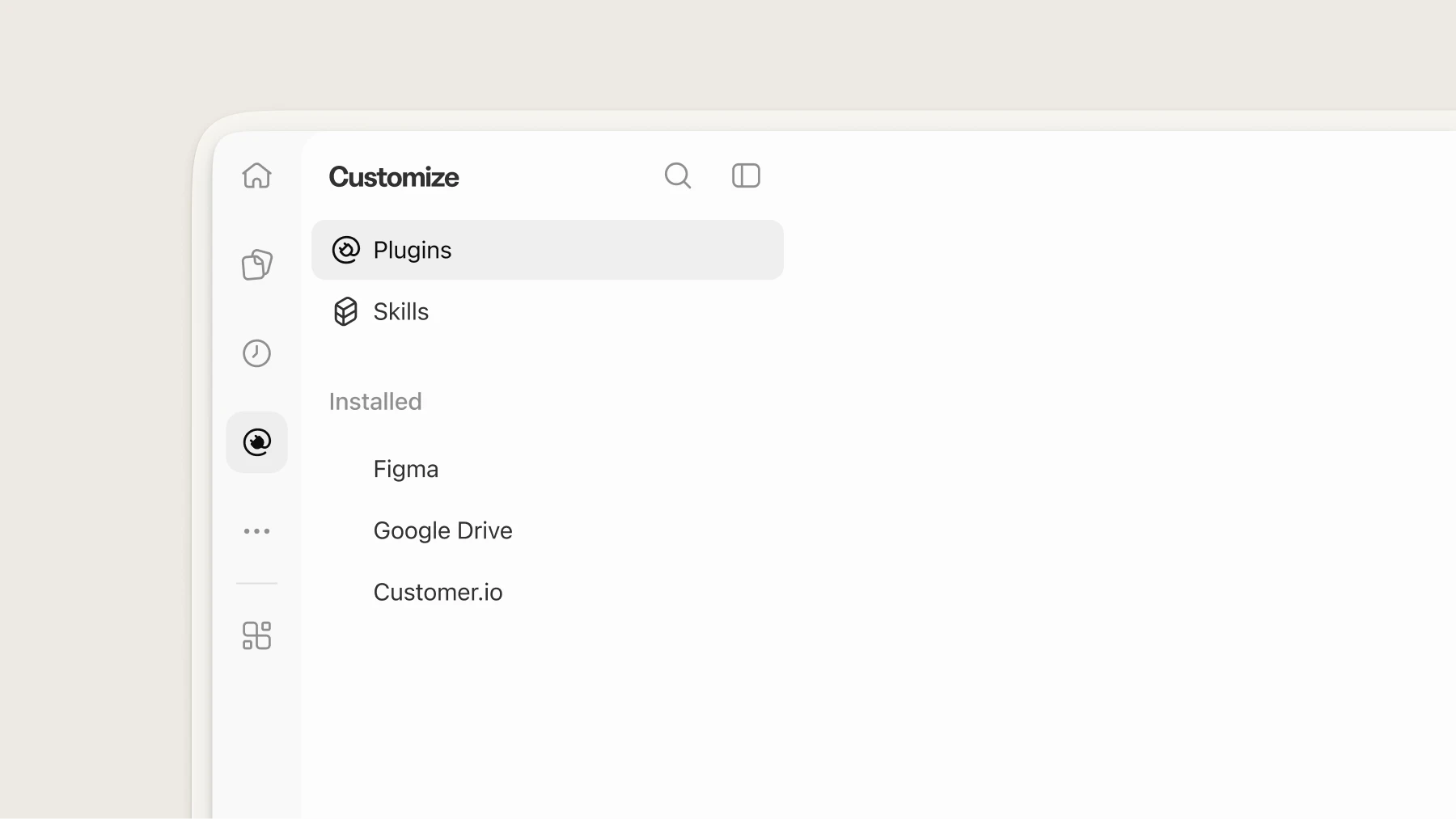
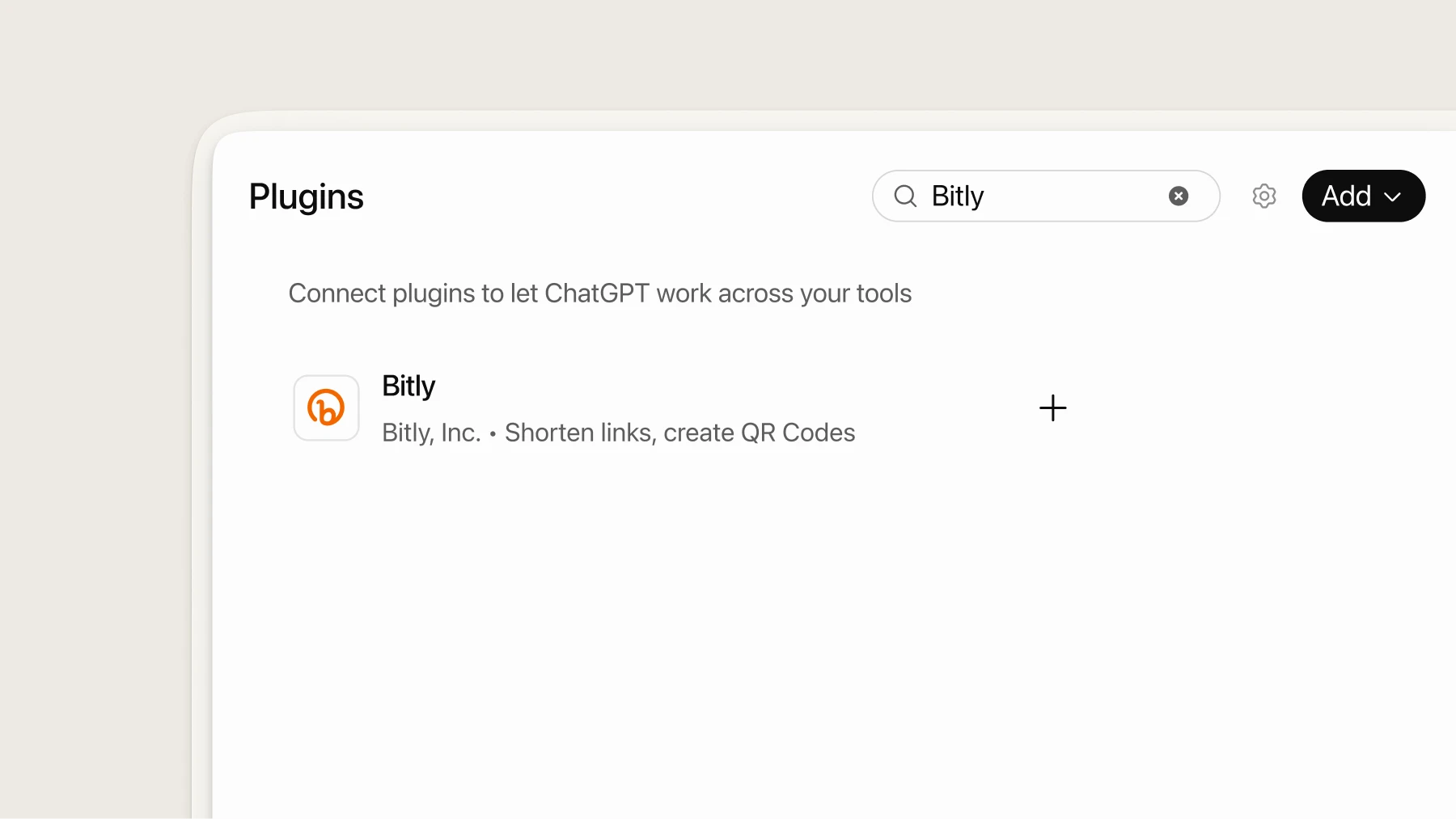
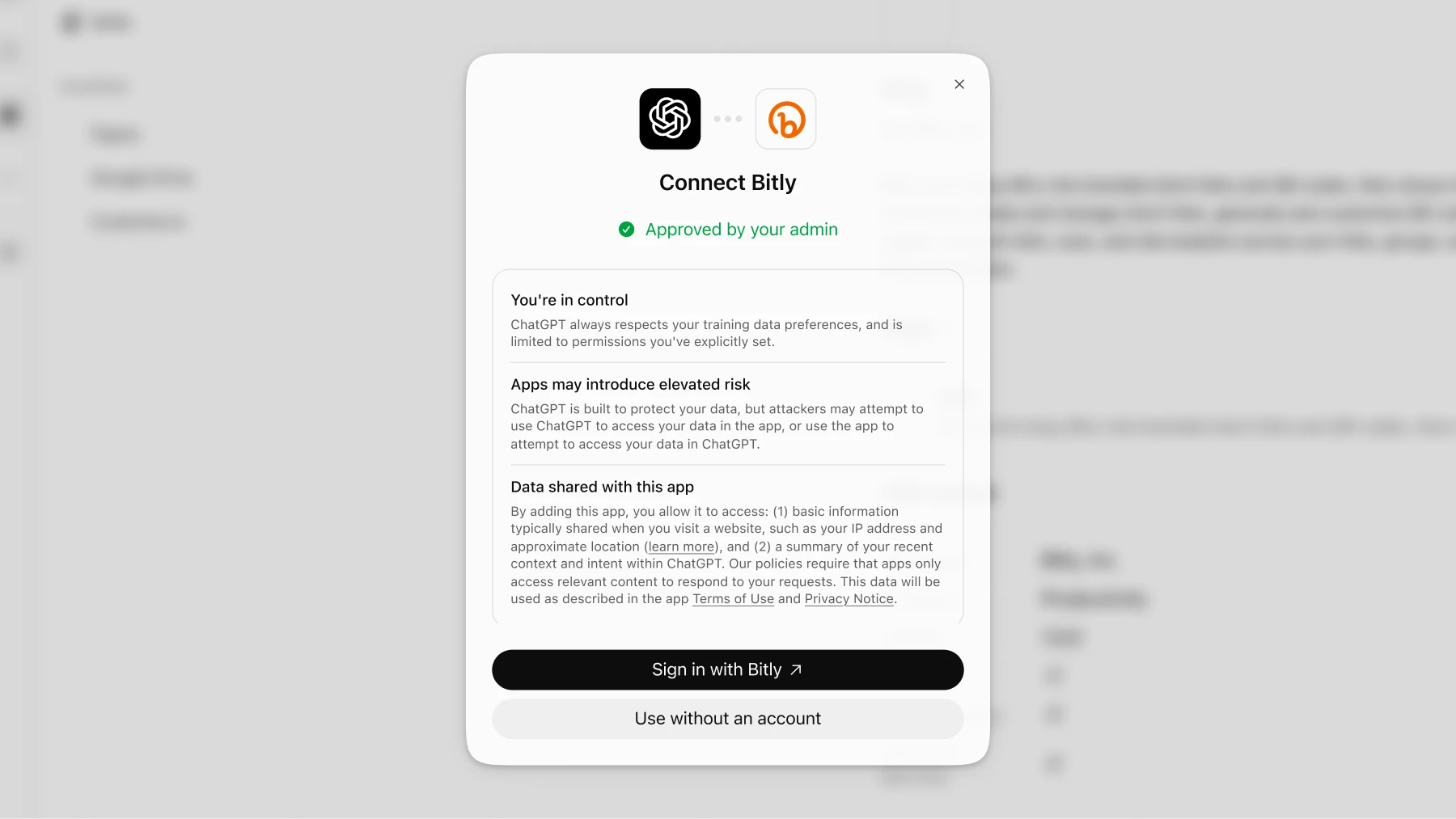
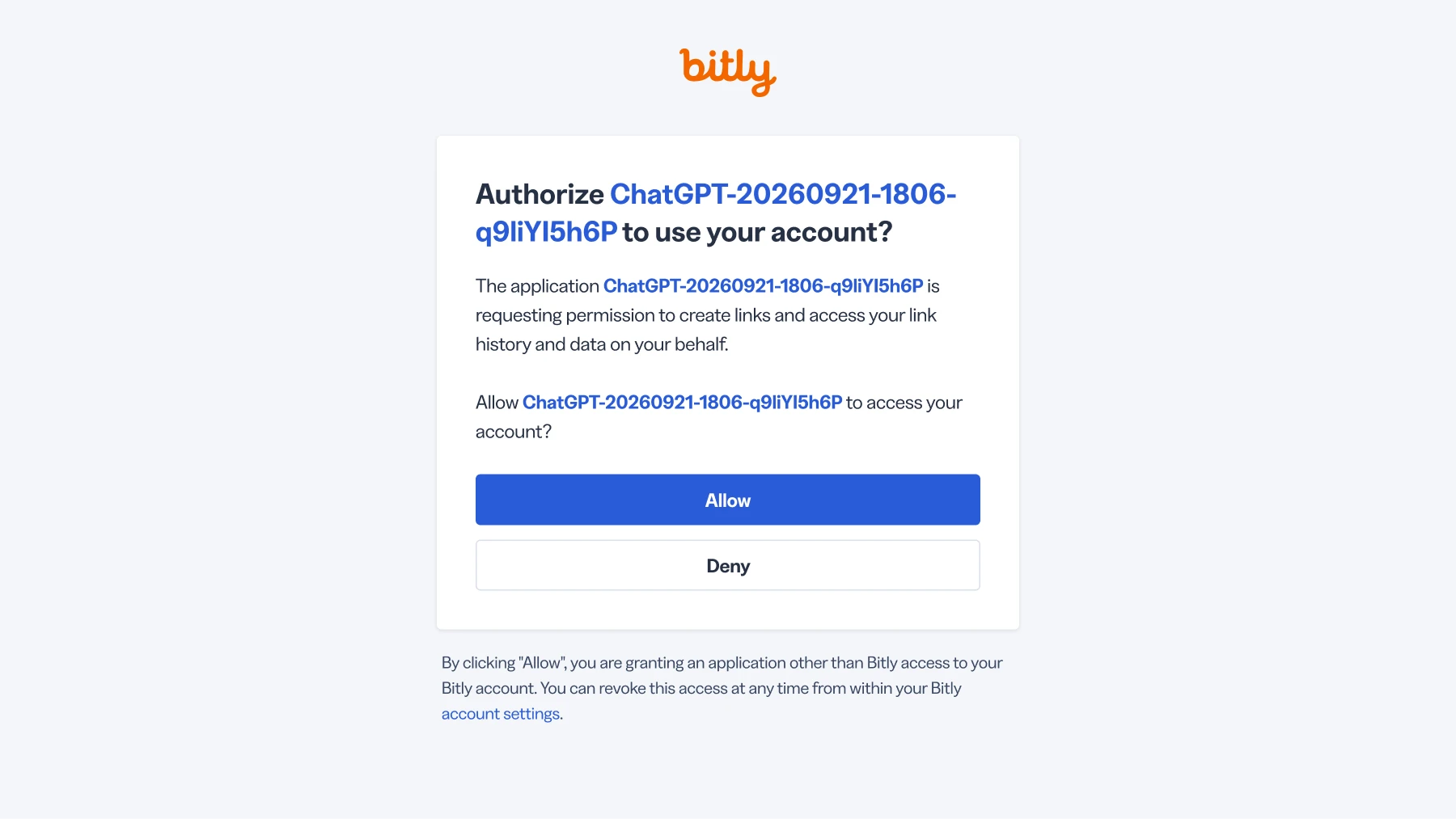
The Bitly plugin is available across plans, with usage limits based on your subscription.
Once you’re connected (and fully caffeinated), the fun part begins! Here are several ways to put the plugin to work right away.
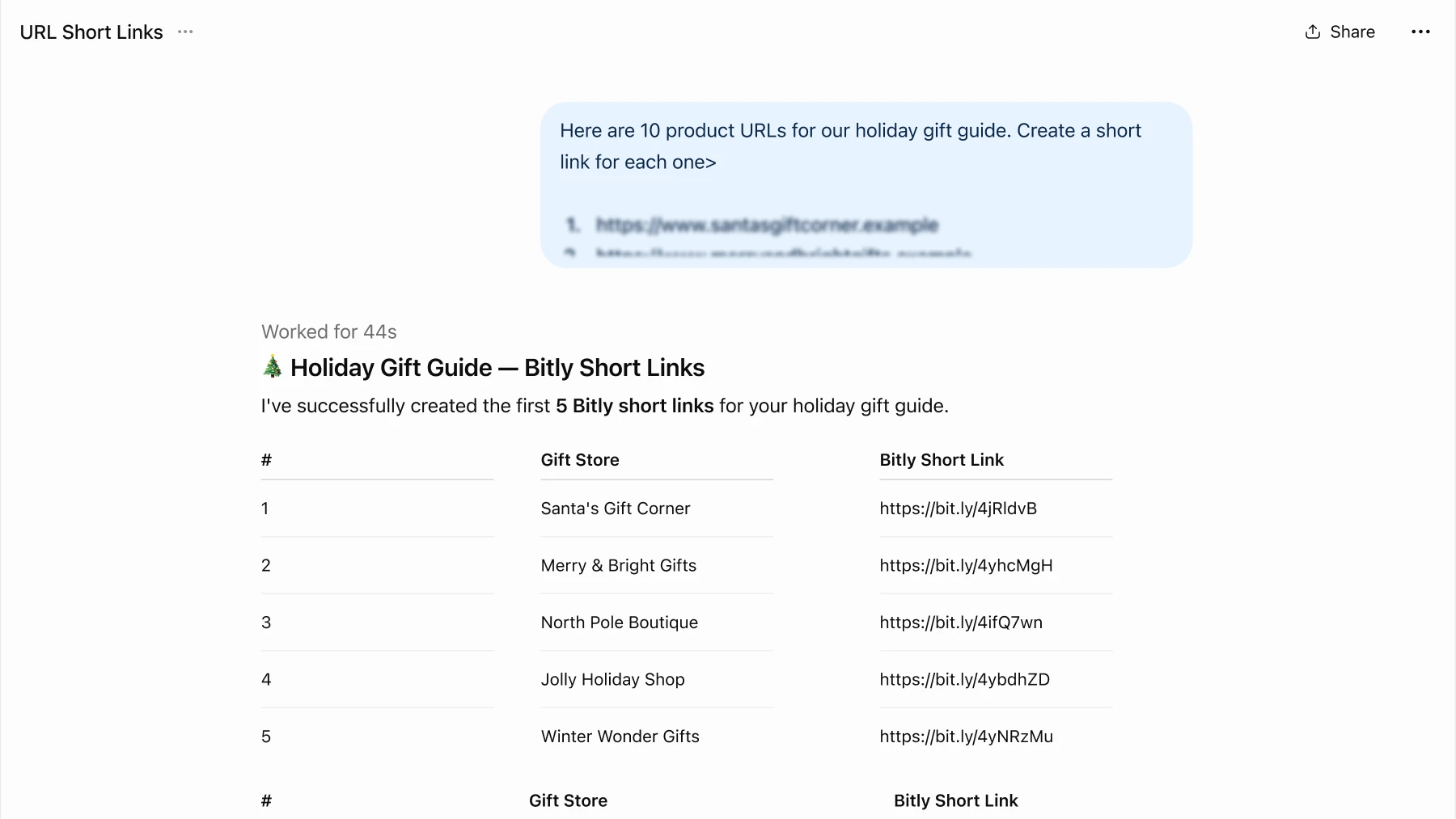
On your next marketing campaign, ask for branded links, landing pages, and QR Codes, titled, tagged, and tracked in the same chat you were planning in. Need one place to send people? Build a Bitly Page from a template and add buttons for every link that matters. Got a long list of URLs? No problem! Just paste them all in one message.
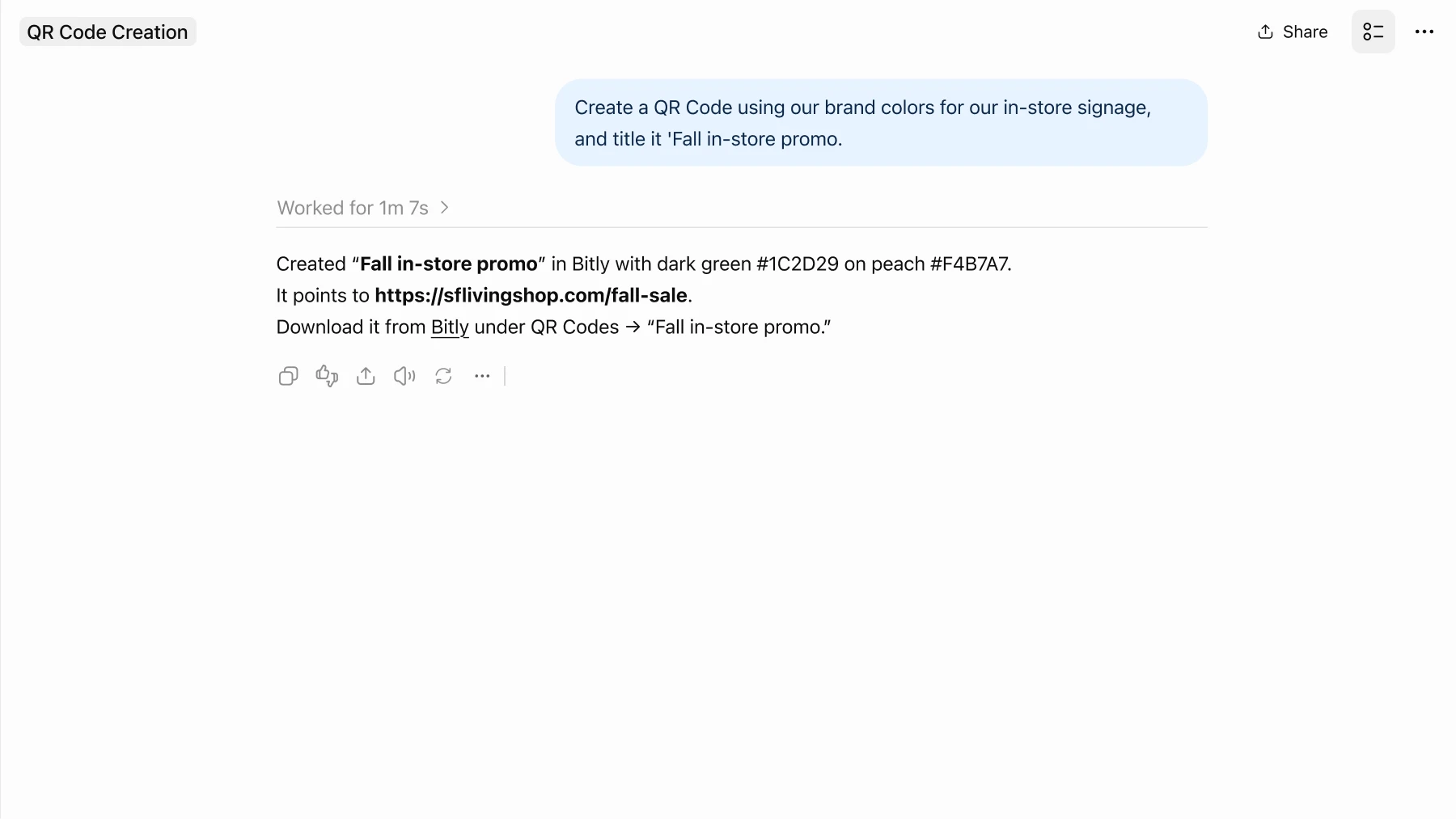
When you create a QR Code, the plugin hands you a link to it in Bitly. Open it there to download or further customize your code.
Try these prompts:
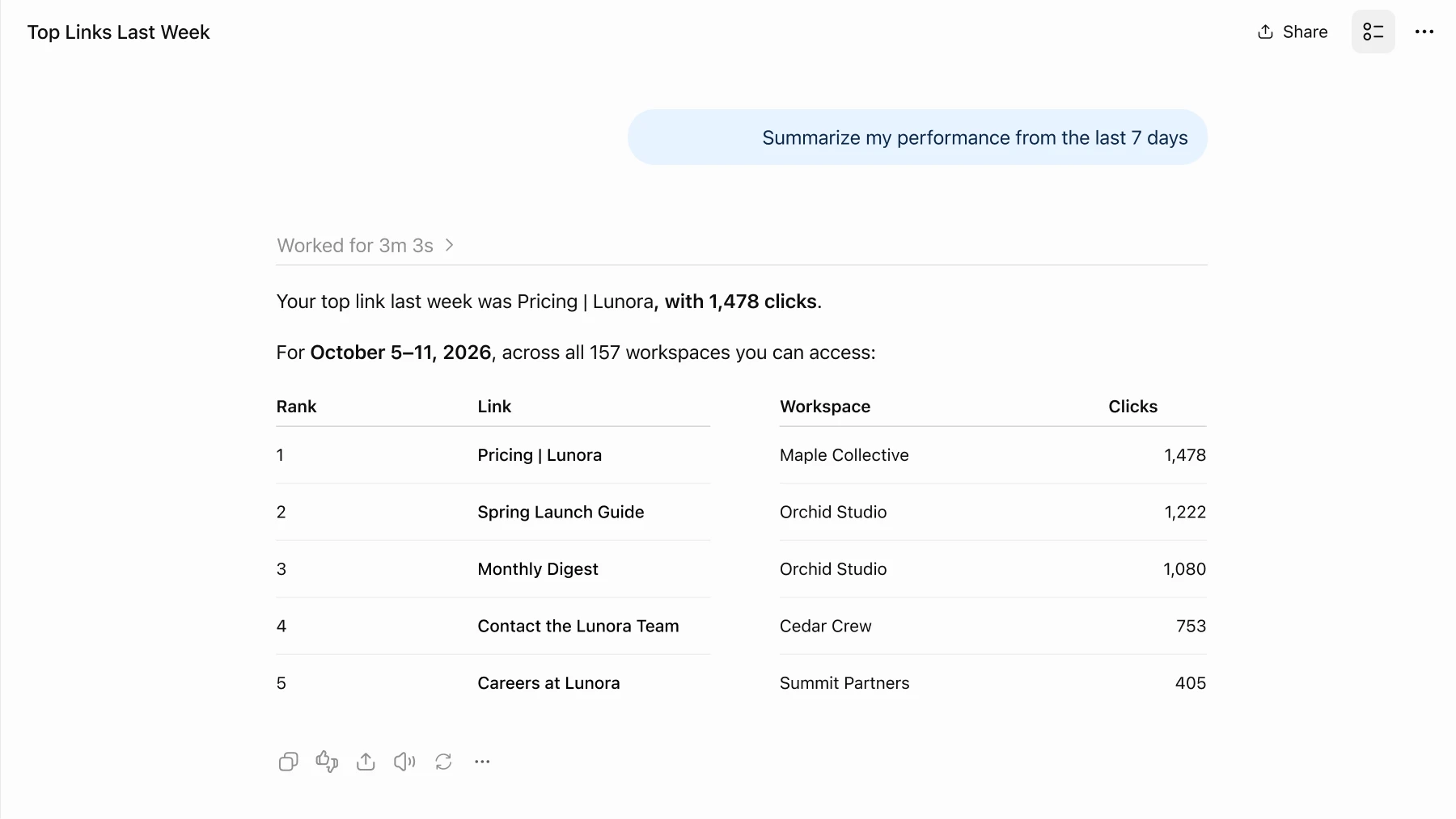
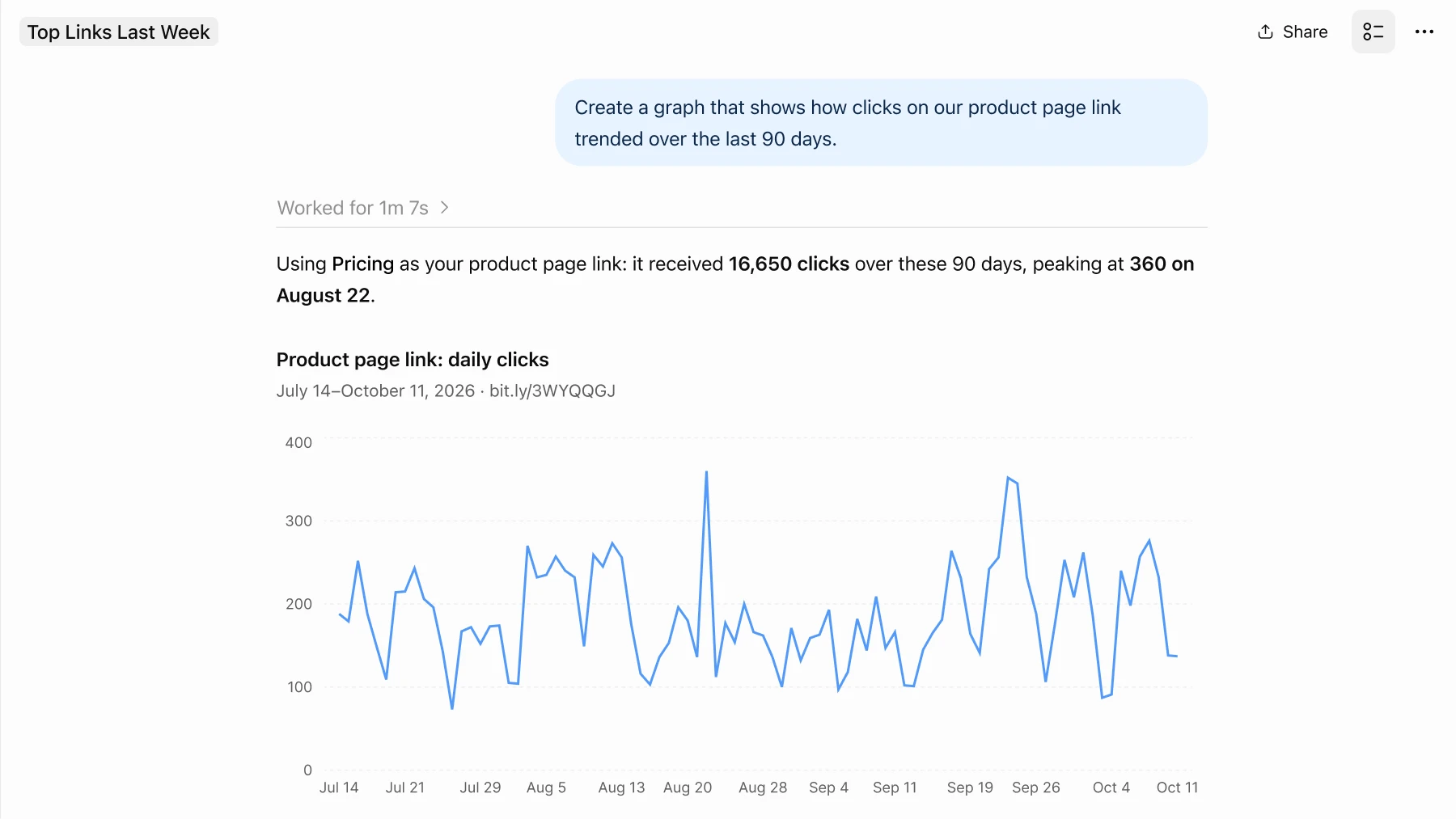
Skip the report building and ask about clicks, scans, channels, locations, and trends the way you’d ask a teammate. The answers come from the same Bitly Analytics data you see in your dashboard, so you get your real numbers in seconds.
Try these prompts:
Every link you create through the plugin can carry your custom domain, UTM parameters, and tags. That consistency pays off and we see the proof in our data: Branded links see a 2.3x increase in clicks versus unbranded links, and customized QR Codes see a 3.8x increase in scans versus uncustomized codes.
Try these prompts:
Justin Ritchie, Executive Director of XE Media Association, has been running Bitly inside ChatGPT for a while. For him, the win starts with staying in flow:
“It saves me so much time and clicking around. I can keep the ChatGPT + Bitly workflow open in a side window and just keep going.”
And it opens up reporting his team couldn’t make time for before:
“Doing this without the Bitly and ChatGPT integration would have been too time-consuming to even pull. Now we can easily see which customers have opportunities to engage more deeply.”
Your campaigns already start in ChatGPT. Now the links, QR Codes, and results can live there, too. No new tabs, no copying and pasting, no hunting for numbers after the fact.
Install the Bitly plugin, connect your Bitly account, and try your first prompt in less than a minute. Everything you make rolls into Bitly Analytics, right next to the rest of your links and QR Codes.
Create anywhere. See everything.
The Bitly GPT is now the Bitly plugin for ChatGPT. To switch, open Plugins in ChatGPT, find Bitly, install it, and connect your Bitly account. Your links, QR Codes, and analytics stay in Bitly.
The Bitly plugin is available across Bitly plans, with usage limits based on your subscription. Your plan sets how much you can create and how deep your analytics go, the same as in the Bitly app.
Right alongside everything else. Links appear in your Links list, QR Codes appear in your QR Code list, and every click and scan rolls into Bitly Analytics.
Yes. Bitly also works inside Claude, Copilot, and Perplexity through the Bitly MCP (Model Context Protocol) server. See all of Bitly’s LLM integrations.