A “QR Code for data collection” is any scannable quick response code that opens a form, survey, registration page, or similar URL. People submit information on their phone. Responses are saved to the form tool or connected sheet.
This setup lets teams replace paper clipboards, long typed URLs, and delayed feedback with one scan. Two data layers work together. Passive scan analytics describe how the code itself performs, whereas you collect active submission data only when someone completes the form.
Bitly is the marketing platform that helps businesses of all sizes see what’s working, simply and clearly.
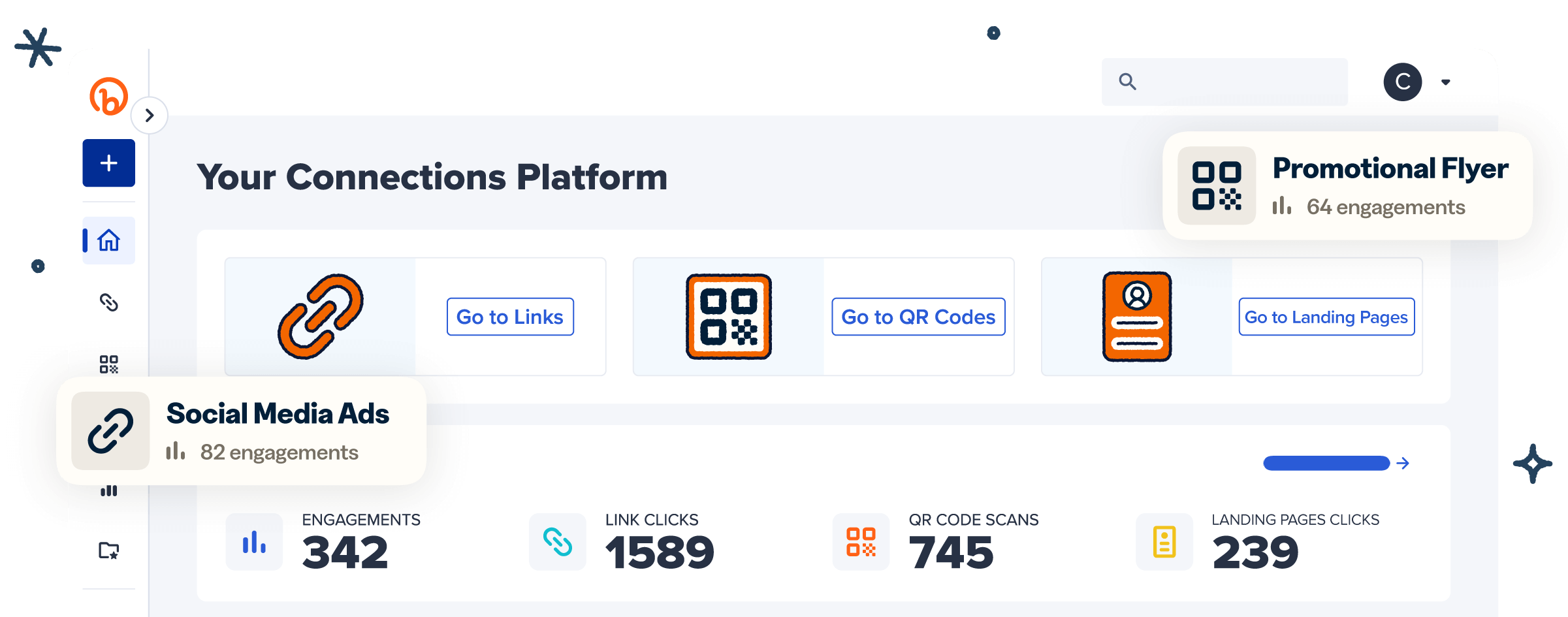
With Bitly Codes, you can create branded Dynamic QR Codes for any form URL, then measure scans in Bitly Analytics without replacing your form tool. This article looks at how.
Key takeaways
- A QR Code for data collection opens a form or survey URL, allowing people to submit information on their phones. Responses save in the cloud.
- Passive scan data includes signals such as time, device, and location whenever someone scans your code. You only collect active submission data when someone completes the form.
- Dynamic QR Codes let you change the form destination URL after print and pair scans with analytics, which static codes can’t do.
- Clear calls to action (CTAs), mobile-friendly forms, and tested placement raise both scan volume and completion rates.
- Bitly Codes turn any form link into a branded, trackable QR Code you can update anytime and measure in Bitly Analytics.
What a QR Code for data collection is
A QR Code for data collection links a physical or digital scan to an online form, survey, or registration page. Submitted answers are saved to your dashboard or spreadsheet.
The code itself holds only a destination, usually a URL or short redirect. It doesn’t store the person’s form answers.
When someone scans, their phone opens the live form. Responses are saved in the form platform or connected sheet you already manage.
A QR Code form replaces two slow steps in data collection. People who want to submit the form no longer have to type long URLs, and your team no longer needs to re-key clipboard data after the event.
The setup works with different tools. Encode the shareable link from Google Forms, SurveyMonkey, Typeform, Jotform, or a similar tool. The same QR Code form pattern works across all platforms that use regular URLs.
A Google Form QR Code, a QR Code survey, and a QR Code for forms all follow this model. Only the destination and fields change. The same approach covers QR Code registration, QR Code check-in, and QR Code for feedback flows.
Passive scan data vs active form submissions
A QR Code can support two kinds of data. Passive scan analytics describe the code’s performance. Active submission data appears only when someone completes the destination form.
Passive scan analytics include date records, approximate locations, device or browser details, and scan counts associated with the code. They don’t create a full personal profile. Unlock this layer with a trackable Dynamic QR Code and review it as QR Code analytics in your dashboard.
Active submission data includes name, email, phone, ratings, open comments, and other fields you design. Those details arrive only if the destination is a form and the user submits it.
That’s how QR Code lead capture works in practice. The scan opens the form, and the person chooses what to share.
Together, form fills and placement-level scan metrics show you which posters, receipts, booths, or slides drive engagement. According to the G2 Learning Hub’s 2025 research, 95% of businesses say QR Codes help them collect first-party data (customer data they own).
Bitly Analytics reports scan behavior for Bitly Codes. Form field storage stays on your form platform. Bitly doesn’t store survey answers inside the code.
Why this split matters for privacy and trust
The QR Code is just a pointer to your form. Encryption and storage of submitted answers follow your form vendor’s security model.
Choose reputable form tools and display brand marks near the code so people know where to scan. Bitly’s enterprise posture includes SOC 2 and General Data Protection Regulation (GDPR)-aligned controls. Those controls cover the platform that creates and tracks your codes.
Bitly’s controls cover the Bitly link and QR Code layer, but not your form backend.
How to create a QR Code for data collection
Create a QR Code for data collection in four steps. Start with a mobile-ready form, then generate, brand, test, and place a Dynamic QR Code.
1. Build or open your form
Create or finalize the form in the tool you already use, such as Google Forms or SurveyMonkey.
Keep the path mobile-first. Aim for a short form, about five to seven feedback questions. Pick one clear goal such as lead capture, registration, customer satisfaction (CSAT), or check-in.
Publish the form and copy the shareable link. Shorten or add UTM parameters (campaign tags in a URL) when you need clearer campaign tracking.
2. Generate a Bitly Code from the form URL
Sign in to Bitly. Choose Create new → Create a QR Code, and paste the form URL into the Destination URL field.
Create a Dynamic QR Code (Bitly’s default) so you can edit the QR Code later if the form link changes. Add UTM parameters to the URL for channel or placement attribution alongside scans when you run the campaign before generating the QR Code.
3. Customize for recognition
Select Design your code. Apply brand colors, frame, pattern, and logo so the code matches your brand in print and digital placements. Customized QR Codes see a 3.8x increase in scans compared to uncustomized codes.
Save the custom QR Code design as a reusable template when you deploy many placements.
4. Download, test, and place
Download PNG, JPEG, or SVG image files for the channel. Use SVG for large format work.
Test on multiple phones before print. Confirm that the correct form opens and that collector settings behave as intended.
Place the code with a written CTA frame, such as “Scan to share feedback in 2 minutes.” Add a short URL fallback next to the code when it helps for accessibility.
For a Google Forms-only walkthrough, see how to make a QR Code for a Google Form.
Where teams use QR Codes to collect data
Use a data-collection QR Code anywhere you would hand someone a clipboard. It also works whenever you would ask someone to type a long URL.
Feedback from people who already know your brand also supports retention. Zippia reports that 65% of a company’s revenue comes from repeat customers.
- Events and trade shows. Point codes on badges, booths, and slides to registration, lead forms, or session feedback. Activate your next event with QR Codes when you need placement ideas beyond the booth.
- Retail and restaurants. Put a QR Code survey on receipts, table tents, or counter cards. Use it for CSAT, loyalty signup, or order feedback while the experience is fresh. For a full CSAT path, see how to distribute a customer satisfaction survey.
- Healthcare and services. Use general intake, waiver, or post-visit feedback forms after an appointment or service visit. Keep claims practical and avoid clinical guarantees.
- Workplace and education. Share pulse checks, class comprehension questions, anonymous feedback posters, or a QR Code check-in that opens a short attendance form.
- Field ops and facilities. Link inspection logs or issue-report forms so crews capture structured notes without paper routes.
- Packaging and direct mail. Drive a post-purchase survey or reorder preference form from a carton, insert, or mail piece.
| Touchpoint | Example destination | Data you collect | Bitly measurement angle |
|---|---|---|---|
| Events and trade shows | Booth lead form or session feedback survey | Contact details, interest, session ratings | Scan volume by booth, slide, or day |
| Retail and restaurants | Receipt or table-tent CSAT survey | Satisfaction scores, comments, loyalty opt-ins | Placement comparison for receipt vs table tent |
| Healthcare and services | Intake, waiver, or post-visit feedback form | Administrative details, consent, service feedback | Scan timing after visits or appointments |
| Workplace and education | Pulse check, check-in, or anonymous feedback form | Sentiment, attendance, comprehension, open comments | Poster or room-level scan trends |
| Field ops and facilities | Inspection or issue-report form | Structured logs, issue type, location notes | Which sites or assets drive reports |
| Packaging and direct mail | Post-purchase survey or reorder form | Preference, satisfaction, intent to repurchase | Channel lift for pack vs insert codes |
Explore QR Codes for surveys, QR Codes for customer feedback, and Bitly’s surveys and feedback use case.
Dynamic QR Codes, tracking, and response rates
Choose Dynamic QR Codes for data-collection campaigns. You can edit the form destination after printing and review scan analytics.
Static vs dynamic, in plain language:
- A static code encodes a fixed destination and doesn’t give you Bitly-style scan history.
- A Dynamic QR Code uses a redirect you can change and measure. That’s why dynamic campaigns fit long-lived print and packaging.
| Capability | Static QR Code | Dynamic QR Code |
|---|---|---|
| Destination after print | Fixed | Editable redirect |
| Scan analytics in Bitly | Not available | Available (plan-dependent depth) |
| Best fit for data collection | One-off fixed form URL | Campaigns you will update or compare |
| Reprint when the form link changes | Often required | Not required |
Measure more than scan counts alone. Track form starts and completes in your form tool. Review scan counts by placement, date, device, and location. Give each poster, receipt, or slide a unique web link or UTM to connect touchpoints with completed responses.
Response-rate levers stay concrete. Keep forms short and mobile-friendly. Lead with a benefit-led CTA.
Size the code for viewing distance, protect the quiet zone (the blank margin around the code), and test contrast. Add an incentive when it fits. A/B test the headline beside the code.
Access speed matters. In a 2024 U.S. Census Bureau usability study, people opened a survey via QR Code in an average of 12.4 seconds.
Participants rated the process as easy in that study.
Long surveys still reduce completion rates. According to Shep Hyken’s 2024 research, 67% of customers said they don’t complete surveys that are too long. Keep QR Codes for survey destinations short.
Pair form metrics with Bitly Analytics. Ask performance questions with Bitly Assist, and use Weekly Insights to spot what changed.
For deeper tracking context, read our explainer on Static vs Dynamic QR Codes before you scale the program.
Safety, placement, and design best practices
A QR Code is safe for data collection when it points to a secure HTTPS form (a form on an encrypted web page). Keep your brand visible beside the code, and monitor public placements for tampering.
Trust checklist
- Place your logo or brand name next to the code.
- Add plain language such as “Opens our feedback form.”
- Show a vanity URL (a short branded web address) beside the code for people who prefer to type.
Design checklist
- Size the code for viewing distance.
- Use high contrast between dark modules and a light background.
- Protect the quiet zone around the code.
- Export high-resolution files and test scans before distribution.
Public placements need light ongoing care. The U.S. Postal Inspection Service warns about quishing, fake QR overlays, and similar scams. Audit outdoor or high-traffic codes regularly. For more on secure code practices, read our guide to QR Code security.
Accessibility stays part of the design. Offer a short URL alternative, keep the CTA readable, and avoid relying on color alone. These habits protect trust and completion rates for every placement.
Turn form links into trackable Bitly Codes
A QR Code for data collection works best when the form is short and mobile-ready. Keep the code dynamic and on-brand, and measure both scans and completions.
Track both scans and form completions to see which QR Code placements perform best, then repeat them. Pick one priority touchpoint this week. Connect the live form URL and launch a tested Bitly Code.
Bitly is the scannable, measurable layer in front of your form stack, not a replacement form builder. Ready to get the most out of your surveys? Link your marketing. Get started with Bitly today.
Frequently Asked Questions
Below are direct answers about data capture, safety, Dynamic QR Codes, form tools, and response rates.
How do you create a QR Code for data collection?
Follow these steps:
- Build or open your online form and copy its shareable URL.
- Paste that URL into Bitly’s QR Code generator and customize the code.
- Download the code and test it on a phone before you print or share it.
What data can you collect from a QR Code?
A scan on a trackable Dynamic QR Code can show passive analytics such as scan time, device, and approximate location. Personal details, such as name or email, appear only when the code opens a form and the person submits it.
Is it safe to share information through a QR Code form?
Yes, when the code opens a reputable HTTPS form you control or trust. That form platform’s encryption and policies govern how submitted answers are handled. Show your brand next to the code and avoid unlabeled public codes you haven’t verified.
Do I need a Dynamic QR Code for data collection?
Use a Dynamic QR Code whenever you need to change the form link after printing or when you want scan analytics. Static codes can open a fixed form URL but don’t give you editable destinations or Bitly scan history.
Can I use a QR Code with Google Forms or SurveyMonkey?
Yes. Create the form in your preferred tool, copy the share link, and generate a Bitly Code that points to it. The same pattern works for other form and survey platforms.
How do I improve response rates for QR Code surveys?
Use these tactics:
- Keep the form short and mobile-friendly.
- Place a clear benefit-led CTA beside the code.
- Size the code for the viewing distance.
- Test scans before launch.
- Compare placements with unique links or UTMs.