Updating the destination of a link you’ve already shared doesn’t have to mean starting over. Whether you’ve published the wrong URL, refreshed your campaign, or rebranded your site, Bitly’s link management capabilities let you change where any short link points—without touching the link itself. This guide covers everything you need to know: how redirects work, how to use them in Bitly, and when to apply them across your marketing campaigns.
Key takeaways
- Redirecting is not the same as creating a new link: When you redirect a Bitly link, the short URL and any associated QR Code stay exactly the same. Only the destination changes, ensuring your audience never experiences a broken link.
- You retain your click history when you redirect: Bitly keeps a full record of every destination a link has pointed to, along with the clicks each version received. Your campaign data stays intact across every update.
- One short link can serve an entire year of campaigns: Seasonal promotions, updated blog posts, and new product pages are easy to manage. Redirects mean you never have to retire a high-performing link just because the destination changed.
- Redirecting a link also updates its connected QR Code automatically: You don’t have to reprint, redesign, or redistribute anything. The QR Code you already deployed points to the new destination the moment you save the redirect.
- Your redirect limit is tied to your plan: Understanding your plan’s monthly limits for redirects helps you manage campaigns proactively and avoid unexpected interruptions.
What is a link redirect?
A link redirect is the process of changing the destination URL of an existing short link so that anyone who clicks it arrives at a new page—without needing a new link. In Bitly, you can redirect any short link or QR Code at any time, and the change takes effect immediately across every channel where that link is published. It is not the same thing as changing a link name.
For instance, if you have a Bitly link, say bitly.is/latest-post, that points to a blog post you released in November, you can change that same link to point to a new blog post that you released in December.
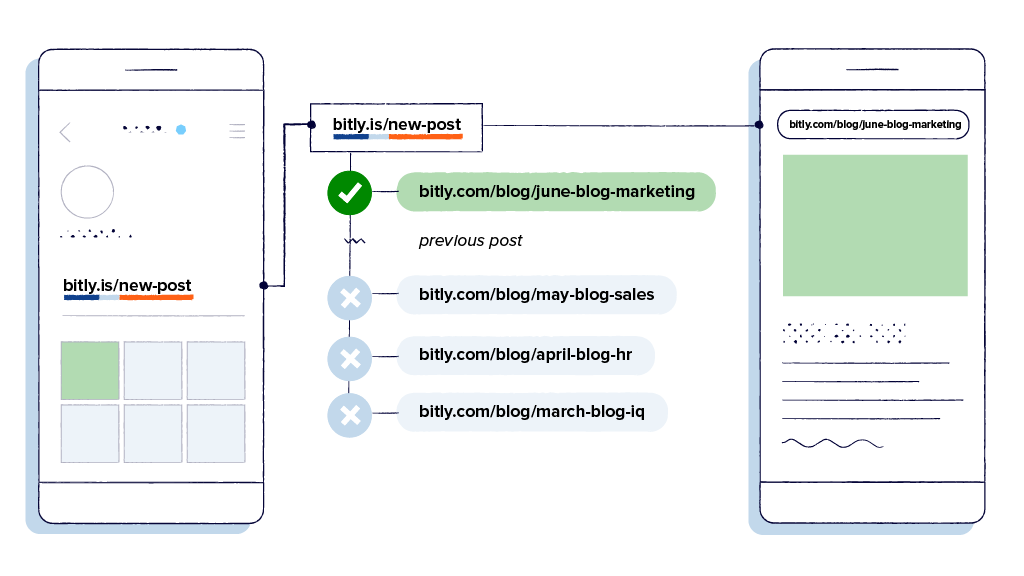
This works for standard ”bit.ly” links as well as branded links created with a custom domain. Our smart links take this functionality one step further, allowing you to direct incoming traffic to multiple locations based on a custom rule set.
How to change a URL destination with Bitly
Bitly makes it simple to update your destination URL in just a few steps—whether you’re working with a short link or a Bitly Page.
How to redirect a short link
To redirect a URL with Bitly, follow these steps:
- Log in to your Bitly account.
- Select Links in the left sidebar.
- Find the shortened link you want to redirect. You can use search or filters to locate it quickly.
- Click the three dots on the right side of the link and select Redirect.
- Choose Yes, continue in the popup window that appears.
- Enter your new target URL and click Redirect.
Your link now points to the new destination URL. Two things happen automatically:
- QR Codes update instantly: Any QR Code tied to that short link redirects to the new destination without reprinting or regenerating.
- Link-in-bio pages sync automatically: If the link appears on a Bitly Pages link-in-bio, it updates in place—no extra steps required.
How to redirect a Bitly Page URL
If you’re using Bitly Pages to host a link-in-bio or digital business card, you can also redirect your Bitly Page URL. Navigate to the Bitly Pages section in the left sidebar, select your page, and edit the custom back-half or destination as needed. This ensures your audience always lands on your most up-to-date content—even if your goals or campaigns have shifted.
How to view your redirect history
Bitly logs every destination change so you can track performance across the full life of a link.
What redirect history shows you
To view your redirect history, select the link you want from your Links list and scroll down to the redirect history section. You’ll find:
- Current destination URL: The active destination your audience reaches right now.
- Previous destination URLs: Every past destination tied to that short link.
- Clicks per destination: The number of clicks each destination received while it was active.
- Time each URL was active: The exact duration each target URL was live.
Understanding redirect limits
Every Bitly plan includes a monthly limit for redirects. Each time you change a destination URL, it counts as one redirect toward that limit. If you reach your limit before the month ends, you can wait for it to reset at the start of your next billing cycle or upgrade to a plan with a higher allowance.
|
What to know |
Detail |
|---|---|
|
How redirects are counted |
Each destination URL change counts as one redirect |
|
When limits reset |
At the start of your next billing cycle |
|
Where to check usage |
Account settings in the Bitly web app |
|
What to do if you reach your limit |
Wait for reset or upgrade to a higher-tier plan |
Why redirect a link?
Correct a destination error
If you’ve shared a link pointing to the wrong page—or your website’s URL structure has changed, like if yoursite.com/aboutus moves to yoursite.com/main/aboutus—a redirect fixes it instantly without sending a new link. Simply update the destination URL, and anyone who follows the original link arrives at the right place automatically.
Update to a new destination
You might want to update the destination of a link over time for several reasons. For instance, you might want to update the destination of a QR Code every few months to point to a new seasonal offer. Here, you will only change the destination but keep the same QR Code and associated short link.
Many of our customers create Bitly Links for their social media and digital marketing campaigns, and they use UTM parameters to track link and visitor information. If you ever need to change the parameters associated with a link, you can do it easily without changing the short link you’ve already shared.
Manually expire old links
If a link you created is no longer valid for you—for instance, if you’re running a limited-time promotion—you can manually change its destination.
Some links have a limited active period.
Alternatively, you might use a Bitly link in printed collateral to promote an upcoming event. After the event is over, you can redirect that short link to your homepage rather than the event registration page. This provides a better user experience to anyone who follows the link after it has expired.
Update the content
Redirect links can also be helpful when updating content. Let’s say you have a blog post or webpage that gets a lot of traffic, but you recently updated the content and want to direct visitors to the updated version. A link redirect can ensure visitors see the latest and most relevant information.
This is especially useful for evergreen content that you update periodically. Change the destination URL and keep the original short link active. This saves you time and maintains the authority of the original short link.
Consistently focus on branding
With Bitly link redirects, you can consistently promote and maintain your brand image by using branded links that contain your custom domain. Even if you change the destination URL, your branded link will remain the same, ensuring brand consistency and recognition.
Examples of where you can use Bitly link redirects
Rebranding efforts
Company rebranding—whether it’s a logo, design, or messaging—can be intensive. You might have to update your website, marketing materials, and social media profiles. Amid all these changes, there’s a risk of losing your established digital presence and breaking existing links.
Bitly link redirects provide a seamless solution for transitioning from old to new links while maintaining link integrity and tracking. Your audience will still enjoy the same experience and see your rebranding efforts while you can continue tracking clicks and managing your links as usual.
Seasonal promotions
As campaigns change throughout the year, redirect the same short link to point to your current promotion—whether that’s a summer sale, a Black Friday offer, or a new product launch. You keep the original link’s click history, track each destination’s performance separately, and never have to redistribute a new URL.
A/B testing
You can use Bitly link redirect to direct traffic to different versions of your webpage and track the clicks and engagement for each version. This lets you gather valuable insights into customer preferences and behavior, helping you optimize your campaigns for maximum results.
For instance, you can test two different subject lines in an email marketing campaign and use Bitly redirects to track which link received more clicks, ultimately helping you determine which subject line is more effective.
Legal and compliance updates
Updates to terms and conditions, privacy policies, and other compliance-related information are necessary for businesses to comply with laws and regulations. However, these updates often require changing the URLs for various pages on your website.
Bitly link redirects allow you to update the destination URL without changing the short link, ensuring that all your links stay functional and accurate. This prevents broken links that can harm your search engine ranking and customer experience.
Best practices for redirecting a URL (and how Bitly can help)
Maintain relevance
If you’re redirecting a URL, it’s important to ensure that the new destination is contextually relevant to the original content. This means that the new page should contain information, products, or services similar to the original page.
Bitly’s link editing functionality allows you to update the destination URL without changing the short link. This ensures that your subscribers can still access the information they seek without feeling misled.
Monitor all traffic
Track clicks across every destination URL to understand which versions of your content drive the most engagement. Bitly Analytics gives you real-time data on your redirected links, including:
- Click-through rates: See how many people engaged with each destination.
- Engagement trends: Identify which content resonates most with your audience.
- Audience segmentation: Filter by geography, device type, and referral source to refine future campaigns.
Avoid chain redirects
Chain redirects occur when a shortened link redirects to another shortened link, and so on. This can negatively impact the customer experience and cause issues such as slow loading times, broken links, and confusion for your audience.
Bitly helps manage redirects efficiently by allowing you to update the destination URL without changing the short link. You can ensure a smooth, seamless transition for your audience without using multiple redirects or relying on website cloaking tools that can undermine your SEO efforts.
Make link redirects easier than ever with Bitly
When searching for solutions to manage and update links, you want an easy-to-use tool to efficiently and effectively redirect URLs. Bitly provides these capabilities with features like quick URL redirection, link tracking, and analytics, making it a relevant and practical choice for those searching for URL management solutions. The user-friendly interface, detailed analytics, and flexible editing options make Bitly the go-to tool for professionals and businesses looking to optimize their link redirects.
Are you ready to get started with link redirects? Upgrade to a paid Bitly plan today and redirect any link with ease.
Frequently Asked Questions about Bitly redirects
Can you redirect a Bitly link on a free plan?
Redirect features are available on paid Bitly plans. Visit the pricing page to compare monthly redirect limits across plans and find the right fit for your needs.
What happens to my QR Code when I redirect a Bitly link?
When you redirect a Bitly link, any QR Code associated with that link automatically updates to point to the new destination URL. You don’t need to generate a new QR Code or reprint your physical marketing materials—the change takes effect the moment you save the redirect.
How many redirects can I do per month?
Your monthly limit for redirects varies by subscription plan—each destination URL change counts as one redirect. Log in to the Bitly web app and check your account settings to view your current usage and limits.